Showing posts with label apple. Show all posts

Sunday, 22 February 2015

The power of iPhone HDR mode

HDR mode was added to the iPhone camera back with iOS 4.1 but being less tech-savvy than I would like these days, I somehow managed to overlook it until quite recently. Last week, we took a holiday in Tasmania, providing some good opportunities to put it through its paces and I must say that I am impressed!

HDR stands for High Dynamic Range and takes three photos at different exposures before intelligently combining them. Sometimes it makes no difference. (Probably often but I only use it when I think it might help.) Sometimes, though the difference is quite dramatic as the following examples show. (Left, normal; Right, HDR.)

An already impressive camera, made even better.

Friday, 9 August 2013

Expanding Macbook Air disk space with SD cards

I’ve had my Macbook Air for over a year now (crazy how time flies) and I still love it. The only drawback really is the limited disk space - the price you pay for speedy flash storage. This would not be a problem were it not for the fact that I have accumulated a lot of photos and music over the years - far too much for the 128GB disk space.

Initially, I tried to get around this by having all my music on my MacBook but keeping photos on external media. This had two problems: (1) by the time that Apps etc. are included, iTunes was still cramping my space, and (2) it was inconvenient to keep plugging in external media every time I wanted to play with my photos, which, given their state of disorganisation at the time, was quite a lot! The problem was compounded further by iPhoto, which is an horrendous space-waster but useful with Photostream.

Plan 2 was to move my iTunes library to an external hard drive that I could plug in when syncing my iOS devices but otherwise not really worry about. This freed up lots of space for sorting out photos (though not all of them), which in turn allowed me to clean up and delete most of my iPhoto library in favour of using Picasa, which is altogether much more sensible in the way that it organises (and shares) pictures.

The problem with Plan 2, however, was that it made it really incovenient to listen to music/podcasts etc. and even to manipulate playlists and things if I was not entirely stably situated - not to mention the use of a USB port keeping the drive attached.

The obvious solution, which I had considered for a while but delayed due to cost, was to get an SD card big enough for my iTunes library and use this instead. As the picture above shows, SD cards do still stick out a little and so they do not provide the perfect permanent disk expansion that I first envisaged when I got my MacBook - I tried out a 32GB for a while - but they are considerably more securely attached than a portable hard drive, much easier to carry around and free up the USB ports for other things. I got myself a SanDisk Ultra 64GB SDXC card for about £40 and moved my iTunes library onto it. This is clearly more per GB than an external hard drive but pretty reasonable for the convenience - and it is convenient. Access times are pretty speedy and you can go for the Extreme SDXC card if such things worry you.

So far, it’s working out really well and I can heartily recommend it if you have similar Macbook Air storage issues. My only real fear is misplacing the SD card because it is so much smaller than a portable hard drive! As an added bonus, the Mac mini that I have just ordered for work has an SD slot too, so I’ll be able to take my whole library to work if I want to without having to use up valuable HD space on such frivolities! (In fact, it's worked so well that I’ve also ordered a 128GB card for working on both computers, which seems much more convenient (and faster) than using USB devices for the same purpose.)

Wednesday, 31 July 2013

Making your iPad a laptop with the Incase Origami Workstation

I’ve previously blogged about my frustration when trying to use a iPad for much in the way of text input, even when using an external keyboard. The problem is that even though the pairing of the iPad with the keyboard through Bluetooth works really well, you still need to physically interact with the iPad. (A wireless trackpad will not work.) I have the standard folding iPad cover, so this means that I either have to lie it down, which is not very useful/practical, or stand it up and press the screen very gently so as not to topple it. What I really needed was something that would give some back support to the iPad whilst using the keyboard.

This week I got myself an Incase Origami Workstation, having seen it used successfully on a iPad training course. Like all the best ideas, this is a really simple but well executed piece of kit. As the name suggests, it folds out from a flat, lightweight keyboard cover to a stand that keeps the iPad and keyboard securely in place. The velcro makes the switch quick, easy and painless.

Perhaps surprisingly, it actually does a pretty decent job at turning your iPad into a literal laptop. Although the hinge of the Origami Workstation is too flexible to move it about much whilst the iPad is slotted in, once in place it is pretty stable; when using it on a table it is very sturdy and does the job superbly.

Thoroughly recommended! (Cheaper in the Apple Store than Amazon at the moment too!)

Friday, 26 July 2013

Using an iPhone for real world shopping

It’s official - I have become an Apple fanboy. Despite my irritation at their policy of charging seemingly excessive amounts for cable/adaptors to connect their devices to the rest of the world - I nearly wrote “unashamed fanboy” but I am slightly ashamed - they keep finding new ways to blow my mind. (And make me feel old at the level of excitement and amazement it stirs in me.)

Shopping on a mobile device is pretty old school and Apps for online stores abound. What got me really excited recently, though, was the ability to shop in the real world using my phone. The first step on my journey was at Starbucks. I’ve had a Starbucks card and the Starbucks App for some time and finally took the plunge a couple of weeks ago to try and pay with the App - simply tap Touch to Pay and a barcode pops up that can be scanned at the till (if you have credit on your card). No messing about with cash and wallets - indeed, no need to carry my Starbucks card in said wallet. (Not sure why I still do!)

Today, however, I experienced something beyond that, which really took things to the next level. At the iPad training day on Tuesday, the instructor had an Incase Origami Workstation, which I rather liked the look of. (I have posted before that “When it comes to writing, it’s more of an oPad than an iPad” and this could be a solution - a future post will report!)

A quick browse found it cheaper in the online Apple store that at Amazon, so I thought I’d pay the physical Apple Store in West Quay a visit and see if they had it too. They did, so I grabbed one. I wanted to ask about the pros and cons of having an iMac versus Mac mini plus external monitor, so I loitered and ogled/coveted all the beautiful things in the shop for a while. Unfortunately, all the iStaff were busy, so I gave up and brought my potential purpose up to the desk to pay.

Big mistake, really showing my ignorance, that one! You don’t pay for stuff at the desk in an Apple store - it’s just for repairs, as I was informed. I could take it to any of the roaming staff instead. I actually felt a bit annoyed at this and my face might have fallen at that point, for I had been waiting for one of the roamers to become available for a while. But then:

“Or… you could just do it yourself on your iPhone…”

What‽

But yes, it’s true. For fellow ignorami in the futuristic ways of the Apple store: you can buy things in the shop by using the Apple Store App on your phone. No need to even speak to any of the staff unless you want a bag. You just log on to the store WiFi, go to Stores in the App and pick EasyPay, then scan the barcode of your purchase. Confirm with your Apple ID password and you’re away! Your receipt appears on your phone (and gets emailed to you) and the staff get a notification of the purchase, whilst you go on your merry way. Modern technology! Mind blown.

Wednesday, 24 July 2013

Saving your iPad's home button with Multitasking gestures

Today, I attended an iPad training day run by Joe Moretti, which focused on using iPads in education. We explored a bunch of interesting and useful Apps, which I am sure will be the subject of few future posts. One useful thing I learnt, however, was just about the iPad itself.

I often have multiple apps open at once and copy/paste stuff between them or otherwise want to switch from one to another at reasonable frequency. Most people know that you can use double-press the Home button to reveal a bar of recently-used apps that you can swipe through. What you may not know (and I didn’t) is that you can use a single four-finger gesture to reveal this, saving time as well as wear and tear on your Home button. Likewise, a single gesture will return to the Home screen. You can even switch apps directly and bypass the Home screen or multitasking bar altogether. The gestures are in the iPad user guide:

You can use multitasking gestures on iPad to return to the Home screen, reveal the multitasking bar, or switch to another app.

Return to the Home screen: Pinch four or five fingers together.

Reveal the multitasking bar: Swipe up with four or five fingers.

Switch apps: Swipe left or right with four or five fingers.

Turn multitasking gestures on or off: Go to Settings > General > Multitasking Gestures.

It makes me wonder what other useful gems I have missed!

Thursday, 6 December 2012

Surprisingly impressed with Siri

This week, after over five years on the same network, I left O2 and switched to Vodafone. This was purely motivated by money - I wanted to upgrade to an iPhone 4S and the Car Phone Warehouse had a ridiculously good online deal. (Essentially a free phone and a lower monthly tariff that my old one. O2 have always been pretty good to me and, a little ironically, the customer service people you deal with when leaving the network are some of the nicest and most helpful people I've ever dealt with!)

I'd pondered going all out and going for an iPhone 5 but figured that if I did that I might as well upgrade from 32Gb to 64Gb and then we're talking £400 for the phone. Plus, of course, all my iPhone 4 adaptors etc. would cease working and I'd have to get a new case and all the rest. So, I opted for the more thrifty choice.

The new phone itself was transferred to my old number yesterday and so far, so good. Apart from being generally faster, I've not yet done enough to really notice the difference yet but I have given Siri a little road test.

Having last played with voice recognition software when at Uni in the 90's, my expectations were very low and I've actually been very impressed. My first task for him was to give me 1/2lb in kg. (I thought one 250g block of butter would be ok but wanted to check.) The request was understood and the right answer provided. Today, I've tried his DJ capabilities: this morning, he correctly interpreted my request for some Avenged Sevenfold and put their albums on shuffle for me. This afternoon, en route to getting our Christmas tree following a work Christmas social, he correctly understood my wife's request for the Christmas playlist.

I still can't decide whether Siri is purely a gimmick (for most people at least) or whether it will prove to be useful (can operate with gloves!) but these early successes mean that I feel more inclined to find out.

Sunday, 12 August 2012

Mac Links and Shortcuts

The biggest problem of moving from PC to Mac is that all the shortcuts are different. Maybe it's just because I have been a PC user for so many years but, generally, I find the PC shortcuts to be much more intuitive. For example, to take a screen grab to the clipboard on a PC you hit "Print Screen", on a Mac you press Command+Control+Shift+3. (Obviously, duh!)

The flip-spide is that hunting down the basic shortcuts reveals a host of other shortcuts of related functions. I am not sure if PCs have so many or not but here are the screen grab options from MacRumors:
  • Command-Shift-3: Take a screenshot of the screen, and save it as a file on the desktop
  • Command-Shift-4, then select an area: Take a screenshot of an area and save it as a file on the desktop
  • Command-Shift-4, then space, then click a window: Take a screenshot of a window and save it as a file on the desktop
  • Command-Control-Shift-3: Take a screenshot of the screen, and save it to the clipboard
  • Command-Control-Shift-4, then select an area: Take a screenshot of an area and save it to the clipboard
  • Command-Control-Shift-4, then space, then click a window: Take a screenshot of a window and save it to the clipboard
In Leopard and later, the following keys can be held down while selecting an area (via Command-Shift-4 or Command-Control-Shift-4):
  • Space, to lock the size of the selected region and instead move it when the mouse moves
  • Shift, to resize only one edge of the selected region
  • Option (Alt), to resize the selected region with its center as the anchor point
I've decided to start keeping track of the shortcuts (and links to lists of shortcuts) useful to me personally here. Although Google works pretty well, suggestions of good resources are welcome. Now, if only we could convince Apple and PC laptop manufacturers to come up with a universal standard for where to put the shift, function, control, alt and command keys, life for the shortcut-user would be good. (Of course, you would want the Apple command key where the windows control key lives.)

Saturday, 30 June 2012

Turning to the Dark Side

So, I have finally joined the Dark Side and bought myself an Apple computer. One of the new MacBook Air laptops in fact. And it's lovely! (Hello!) I know that not everyone will agree with my casting of Apple as the Dark Side. For years, Microsoft seemed to be the corporation that everybody loved to hate.

Microsoft never achieved the monopoly of Apple, though. With a PC, you could change components yourself, therefore benefiting from a free market. The same even applies to operating systems - if you really hate Microsoft, put Linux on your PC. (I did recently on my little Dell netbook after the upgrade to Windows 7 at work made it utterly useless.) Different hardware. Different software. Different strokes for different folks. PCs were the computers for the real geeks.

Apple, on the other hand, made pretty gadgets but always seemed greedy. Oh, you want to connect one of our devices to the rest of the world, not to another one of our devices? That'll be another £15 for a special adaptor, please. Want to upgrade your memory? Well, you'll have to get that from us too. Etc.

On the other hand, there is something to be said for a monopoly. Apple control their products. There's none of the PC irritation of buying a game only to find that the two hundred different graphics cards supported does not include the one you have or that, for unknown reasons, your particular motherboard/memory/hard drive combination just doesn't seem to work together as well as the individual numbers would suggest. Then there are all the things claiming to speed up your system, or clean your registry, or check for viruses and spyware and yadayadayada. When I was young, I enjoyed finding out about this stuff but it doesn't seem like such fun anymore. An Apple, in contrast, just works. And if it doesn't, there is one person to blame: Apple.
Luke: Is the dark side stronger?

Yoda: No. Quicker. Easier. More seductive.
I still think I am a geek but maybe I am getting old, or computers are just a lot more complicated than they used to be, but these I want something where everything just works! And boy, does the new MacBook Air work! Everything about it is a joy. Lovely to look at, lovely to use. I'm still getting used to the different short-cuts and the like, and no delete key (only a backspace - Fn+BACKSPACE is the PC "delete", by the way) but, on the whole, I am really liking what I see. Best of all, there's no stupid Windows compatibility or performance issues. So far, at least. (I am still in the Honeymoon period and even Windows 7 takes a while before it seems to grind the whole system to a halt at random.)

Someone accused me recently of becoming an Apple advert (I'm already in the iPhone and iPad fan clubs) and I think I may be just about there! My only real criticism (other than dark rumours about the usual shenanigans of a multinational giant that is bigger than many countries) is the usual cable nonsense. Happily, I don't really intend to plug my MacBook into anything other than USB devices - this is for play, not work, so no projector connection or PowerPoint issues for me!

Will I ever go back to a PC, now I have tasted the Apple? It's early days. I am yet to try any programming on it, or see if MS Office works (including Excel Macros) but early indications are probably not. They say that "once you go Mac you can't go back".
Once you start down the Dark path, forever will it dominate your destiny.

Thursday, 28 June 2012

Putting photos on Picasa with an iPad

5-in-1 connector kit for iPadRecently, I posted about the short-comings of the iPad for certain input-intensive activities. The focus of the post was writing. Until recently, I would also have included digital photos in this category.

Much as I am increasingly becoming an Apple convert, I still despair of their odd (or, perhaps, cynical) business decision to equip with their products with a bunch of IO ports that are incompatible with the rest of the world and then fleece their customers for more money, buying cables that overcome this apparent design flaw. I guess it's good business: unlike PCs, they have a clear monopoly on their products and can get away with such behaviour because their customers - myself included - are willing to fork out the extra cash when needed. It doesn't win any friends but I guess they can just buy friends with all their billions. (Apparently Apple is worth more than all the tea in China and has an annual turnover greater than the GDP of 160 nations, including Syria and New Zealand.) As a result, it came as no surprise that, using only what comes in the box, it is impossible to connect a digital camera to an iPad and upload pictures.Uploading photos to iPad

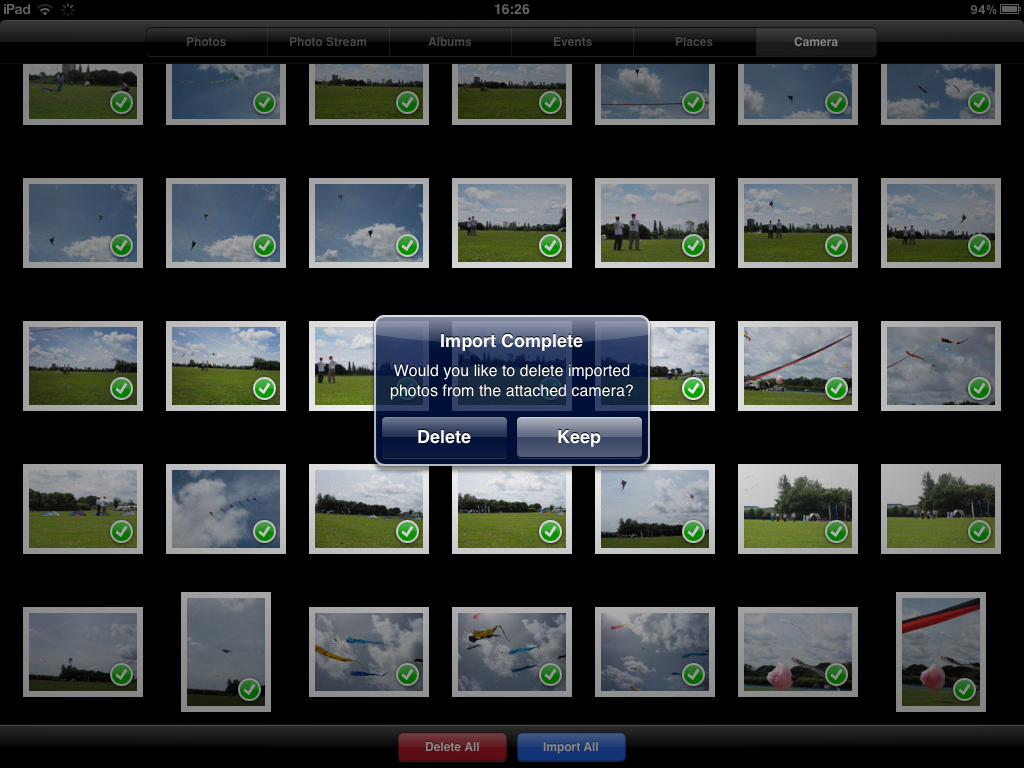
The technology does exist, though, and I recently invested in a 5-in-1 iPad Connection Kit, which I tried out following the recent kite festival. Beyond the irritation of the need to invest in such a piece of kit for what should surely be a basic and obvious function for any tablet or notebook, I am happy to report that this item works really well and conveniently solves my iPad digital photography woes. It's plug-and-play, and you simply attach your camera as normal, select which photos you want to upload (and, in usual iPad fashion, the interface for this is great) and away you go. As with any normal import tool, you are then given the option to delete the uploaded photos from the device.
Import photos
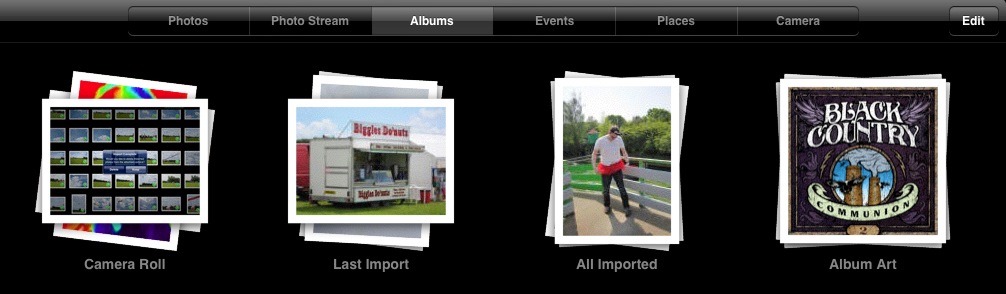
Once on your iPad, the photos are helpfully collated in an Album called "Last Import" with all imported photos in another album imaginatively called "All Imported". These are then available for all your usual iPad activities, such as blogging. You also then have the option of saving the photos individually to your camera roll, which will make them appear on your Photostream and thus available for other devices (if you have iCloud enabled). Happily, they do not all automatically appear in your Photostream - I was worried about filling up my iPhone the first time I tried this.
Albums
Of course, once you have your photos on your iPad, you need to do something with them. In the past, I have had to go via a PC with the good ones (essentially relegating the iPad to a viewing device (oPad!)) but now I use the Best Album App to put them up on Picasa. For some reason - competition, maybe? - Google websites like Picasa do not seem to work very well on iPhones and iPads, in my hands. I've tried a few apps claiming to work well with Picasa in the past and found them disappointing. This might be because I have stuck to the free ones. For a couple of quid, Best Album is well worth it. It just works really well. (So far, at least.)
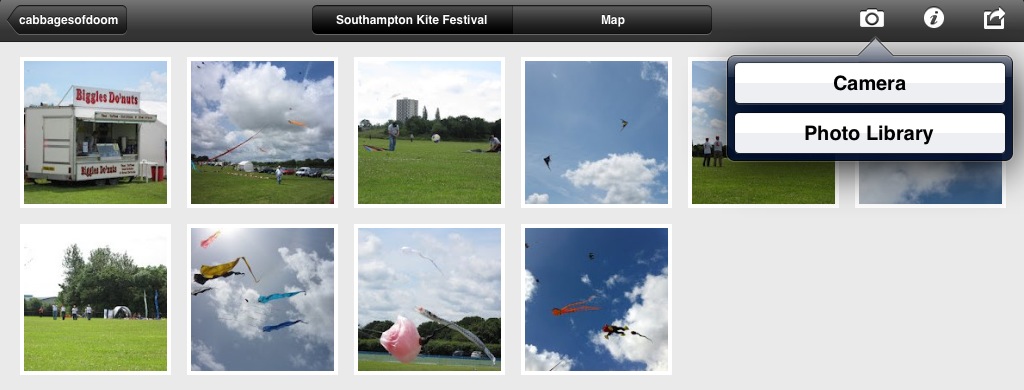
Best Album Upload Picture
Once logged on to your Picasa account, you can view, edit and create galleries easily and then uploading photos is a simple as picking the photos you want from the Photo Library and then uploading. My only real gripe was that I did not find it easy at first to work out the size at which my photos would be uploaded to the website. I cannot remember now whether the default was too big (I don't have unlimited space on Picasa) or too small but it was easy enough to remedy in the Settings once I realised.
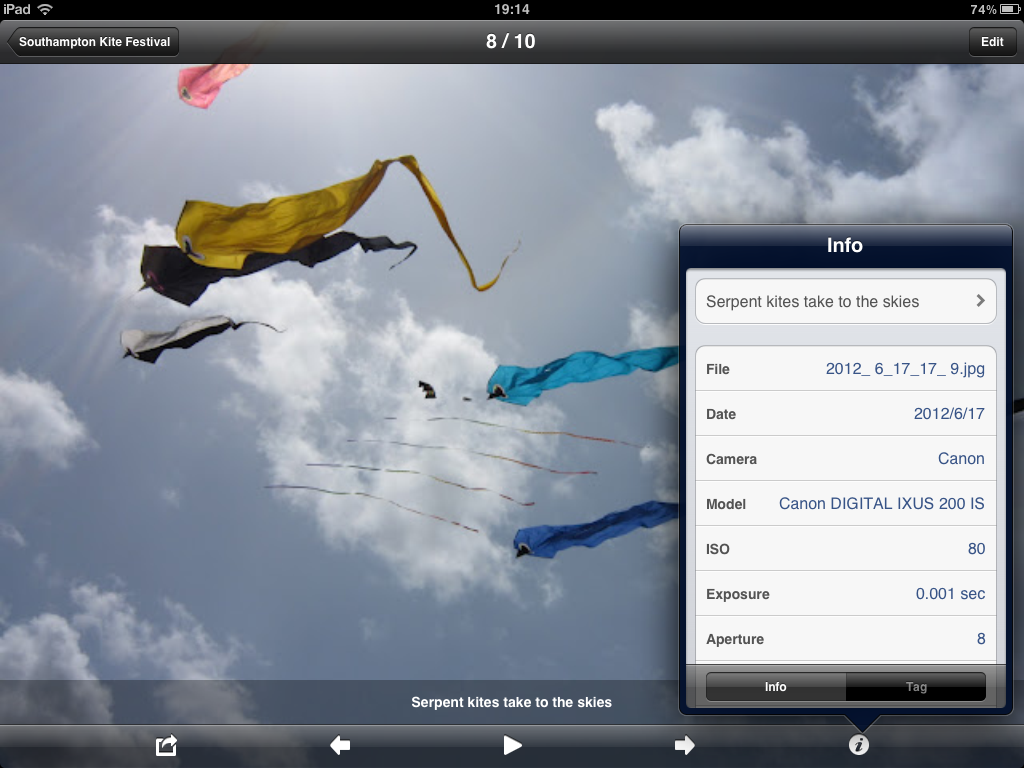
Best Album picture info
Once up, album details can be altered and the cover art set. Individual photos are also really easy to add captions to, and the like. My kite photos are here and the whole process of uploading them, flicking through to find the ones I liked, creating a Picasa album and uploading them, only took a few minutes and gained a bit of the iPad feeling of fun into the bargain. If you own an iPad and like digital photography then I can heartily recommend this combination of kit and app.

(I haven't gone into editing photos at all here because I don't do a lot of it. The main thing that I do is to re-crop photos, and the crop tool in the standard iPad Picture Gallery is perfectly adequate for that.)

Tuesday, 19 June 2012

When it comes to writing, it's more of an oPad than an iPad

This is my 200th blog post and I've had my iPad for around a year now, so it seemed like a good time to reflect on using the iPad for writing in general, and blogging in particular.

I'll start by saying that I really love my iPad and it's great for the main things that I had in mind when I bought it. It's handy for conferences, makes email feel like fun rather than a chore, and is a joy for web surfing - as long as you don't need flash of course! Reading PDFs is good with iBooks and better still if you need to annotate them and invest in the iAnnotate App. With ArtStudio and a stylus, it's great for drawing too. I love the way it's so easy to share and access files between my iPad and other devices using Dropbox, and the way that pictures taken with my iPhone are almost instantly available on my iPad through Photostream.

But... there are situations in which the iPad is not great, which are basically any situations in which a lot of typing is needed. For text-rich output, the iPad is fantastic but text-rich input just isn't its thing.

The problem is not a software issue. The OfficeHD App that I invested in early on is rather rubbish and buggy, to be honest, but the later Apple offering, Pages, works really well (even if it is one of the more expensive Apps out there). The problem is just that, even with the big touchscreen keyboard, you just can't type so quickly and instinctively as with a "real" keyboard.

I did invest in a wireless keyboard when I bought my iPad and, as a piece of kit, it works really well. It pairs cleanly and easily via bluetooth and has the usual delightful Apple keyboard feel that makes it a pleasure to type with. The problem is that it is just not that practical to use it with a iPad. You cannot easily, for example, balance both the iPad and the keyboard on your lap, as you can with a laptop. (It's called a laptop for a reason!) Although you can set up the iPad on a desk and sit the keyboard in front of it, this solution only really works if you only want to type. Without a mouse as well, it is a real pain whenever you want to use any of the functions that require touching the screen.

This is a particular problem when blogging, possibly due to my choice of blogger as host. In my hands, the WYSIWYG "Compose" mode does not really work on an iP* device and, even on Windows, it tends to add lots of unwanted HTML. (Too many divs!) For this reason, and being a bit of an HTML purest (hence my (X)HTML ASCII code cribsheet), I do my blog writing through the "HTML" mode. Writing HTML is especially bad on an iPad because of the need to toggle between letters, numbers and symbols. For blogging, my current solution is therefore to email blogger the subject and photos for a blog post from my iPad (or iPhone), and often the core text (if it's short) without any links or formatting, and then use a laptop (or my little netbook, on which I put Linux after Windows 7 killed it), to tidy up, format and/or add to the text/images.

It works but it's a bit clunky. And progess on "Mystic Mog and the Exploding Tortoise" has slowed to, well, tortoise pace. Happily, the answer might be in hand. Having stalked Mac Rumors for several months awaiting the new MacBook Air - and saving up my pennies - the new version was released last week and mine should be winging its way to me before the end of the month. My website might get some much-needed attention too! ☺

Wednesday, 13 June 2012

Artstudio: like being a kid again (It's great!)

Artstudio cat tutorialI'm a bit obsessed by the Artstudio App for the iPad at the moment. I find that there's something incredibly relaxing about colouring in. Perhaps it's regression to childhood or something! One of the nice features about ArtStudio for the novice is that it comes with a bunch of tutorials with step-by-step instructions to follow for drawing some basic stuff like faces and cats.

Here's a screenshot of my version of their cat tutorial, with a little customisation to make it look a bit more like one of our cats, Mia.

I really can't say enough good things about this App. It's incredibly easy and intuitive to use. The colour palettes, brush controls (e.g. thickness etc.) and layers are really quick and convenient to switch as you work. It all makes for a very pleasing and user-friendly experience. For art newbies like me, having good undo controls is great too!

Magicwand StylusJust before getting the App, with a view to using my iPad to explore my artistic a little, I invested in a Magicwand stylus. When it arrived in the post, I was a little disappointed. It got great reviews on Amazon but I could not get over how thick the stylus itself is: you can get finer control than a finger, for sure, but it is not exactly great for precision stuff. (There must be something about the way the touchscreens work that limits how small a stylus can get.) With Artstudio, it's not a problem, though: you can zoom in and out with such ease that fine control is possible, and the undo button is quick and convenient if you mess up. (I played around with Paper by 53 before investing in Artstudio (it's free) but it was really frustrating.)

At the end of the day, what I really want from an Art App is something that works well enough for my skill to be the limiting factor, not the technology. As you can tell by my first attempt at a "Mangafied" self portrait (below), Artstudio is just that. Five stars, 10/10, a definitely my favourite App of 2012 so far.

Mangafied self-portrait

Saturday, 5 November 2011

iAnnotate: what the iPad was made for

iAnnotate is probably the best App on the iPad, and certainly the best that I have paid for. If you ever need to read PDFs for anything other than pure interest (and even then, to be honest,) iAnnotate is the App for you.

It's great for organising your PDF library but it's the annotation tools that really make it. Notes are easy to add and the highlighter tool is great for flagging bits of interest - or pulling out quotes. You can even draw free-form, if you like. Once you're done, you can email the annotated PDF for printing etc. or just send the notes and, conveniently, the highlighted text. As an academic, this is the perfect tool for reviewing papers.

On top of all this, iAnnotate is probably the least buggy App that I have used. I'm not sure if it has ever crashed on me and it certainly hasn't lost anything I've done if it has. I initially baulked at the price but this App is worth every penny and I look forward to many happy years of iAnnotating my PDFs to come. Top stuff!


Friday, 7 October 2011

What's the atheist equivalent of RIP?

It's always a little strange when a truly famous person dies, especially one made famous by being so bloody brilliant at their job; even more so when the results of that job genuinely change the lives of millions. There are few people that really change the world - even most world leaders don't really make an awful difference in the grand scheme of things. Steve Jobs undeniably changed the world and I can't help feel that the world is a poorer place today for his loss. (Even with all the monopolising and money-grabbing that makes me moan about the "evil" Apple corporation from time to time.)

I was going to title this post "RIP Steve Jobs" as the general sentiment - a respect for the deceased and their memory - is right. The implied sentiment - that Steve Jobs is still hanging around in the giant Apple Store in the sky - is certainly not right, though. This is a problem I've encountered before: what is the atheist equivalent of "RIP"? I'm yet to find something that carries the same sentiment but without the baggage. (It's funny how, like Apple products, the influence of religion pervades all things even when you are "on the other side". (Traditionally, I'm a PC/Windows man!))

Anyhoo... I love my iPhone. I love my iPad. I wouldn't have either without Steve Jobs. Hopefully his memory will inspire others on to greatness. It may be tough in the modern age but one man can still change the world and make it a better place.

Tuesday, 13 September 2011

iPad 2: the perfect conference buddy

Today I gave my iPad it's first proper road test in a work environment. The (work) reason I wanted one was for conferences; I'd seen others with them before and thought they looked handy. Since getting one, however, I have had mixed view on the iPad versus a laptop for such things.

Pros: Excellent battery life; Instant Access; Great web browsing and PDF reading; Discreet;

Cons: Lack of real keyboard*; Lack of "proper" programs for doing stuff.

*I have a wireless keyboard, which I am using now and makes typing long documents much easier, but this is not really practical when sitting in a conference room.

The biggest concern was the lack of a real keyboard. Would I be able to make good notes?

Today, I attended a one day biofilm conference, and the answer is an emphatic yes! All the pros shone - the iPad is light, instantly on, very responsive, and the battery lasted all day and then some, even connected to WiFi for most of the day. None of the cons turned out to be a problem. I wasn't writing essays but I found the "keyboard" adequate for making conference notes (in "Office2 HD") that I could then email to myself or upload on Dropbox. At the same time, the "Idea Sketch" App was great for making visual representations of some of the key themes of the day. With WiFi, looking up things from talks online in real time was quicker, easier and more discreet than with the netbook that I previously used.

My verdict for anyone contemplating an iPad in place of a netbook or laptop for conferences and meetings: it's great! (Especially if the venue has WiFi.)

Location:Southampton, UK

Monday, 8 August 2011

iPad therefore I blog (again)

Well, this is my first blog for a while and the first using my new iPad. I had a quick look for a blogging App but, being too cheap to buy one, and failing to find a free one, I soon gave up on that and thought I'd go raw and do it in Safari.

I didn't realise, however, quite how raw I would have to be. It seems that the main blogger "Compose" window does not really like Safari on the iPad, or perhaps visa versa, and so I am limited to writing in raw HTML. Not a big problem - and I'm sure I'll develop good tagging skills - but it does slow down formatting somewhat.

Worse, it seems impossible to add any photos. I tried linking from a URL but that did not work. Perhaps coding the link directly in HTML will work but this is not really desirable. Oh well, here goes...


Hmmm. Either the Preview has failed or my HTML did - or the Picasa link is not a happy one to use. I guess I will just publish and see. Perhaps I should just stop being so cheap and buy a decent blogging App...