Showing posts with label apps. Show all posts

Sunday, 3 January 2016

Making it a positive 2016

One of my Christmas presents this year was Jamie Oliver’s new book, Everyday Super Food. As well as having some delicious-looking recipes, it also contains some advice for healthy living. One of the things recommended was the YOU-app for small steps in mindfulness, food and movement for health and happiness.

The basic idea is to make a positive change to your life through “micro-actions”, which are quick and simple to perform, rather than setting big goals that are hard to meet. The actions come in four flavours: mind, food, move and love. So far, I like it, and it’s inspiring me to make 2016 a year of making positive blog posts wherever possible. The first is this: check out the You app. It’s free!

Wednesday, 19 August 2015

Oceans of Plastic - Beat the Microbeads (and more)

Tomorrow (Thursday, 20 August 2015 6:00 PM to 8:00 PM (AEST)) there is a Taronga Zoo Science Week event at the zoo: Oceans of Plastic.

I’ll be helping set up through the Sydney Society for Conservation Biology and the event continues the theme of this month’s Conservation Cafe with Prof Emma Johnston, which was on human impacts of marine ecosystems. It was a really interesting morning, and I am looking forwards to learning more.

One thing that struck me that morning was how little I actually knew about the products I used and their impact on the environment. I was shamefully unaware of plastic microbeads in cosmetics like facewash, for example, which are a massive issue.

I’m even more ashamed to say that my (ex-)facewash is on the “Beat the Bead red list” as containing polyethylene (PE) microbeads. I meant to check after the Conservation cafe but completely forgot. This in turn reminded of something else I pondered that day, not just regarding plastic pollution: isn’t it time that we put more pressure on supermarkets to have environmentally aware labelling of products. We already have it for a few things, like tuna (and, sadly, the unhelpful blanket labelling of GM products), but there are so many different considerations - water, energy, waste etc. - that I feel like something more comprehensive is required.

They have asked for questions for tomorrow’s panel, so mine is this:

Could/should we have “environmental impact” traffic lights on goods in supermarkets, akin to the nutritional value traffic lights on food?

I’m not sure if it will get asked but I’ll be interested to hear the panel’s thoughts if it is.

In the meantime, Beat the Microbead have a Warning: Plastics Inside! App. The idea is that you scan or look up your products before you buy. (I tried it on my face scrub and the scan failed but it was in the lookup list.) Alternatively, just go old school and look at the ingredients! (The main ones are: polyethylene (PE), polypropylene (PP), polyethylene terephthalate (PET) and polymethyl methacrylate (PMMA).)

Anyway… if you are in Sydney and looking for a fun and informative (and cheap!) evening, you can get tickets for Oceans of Plastic on Eventbrite.

Monday, 29 July 2013

Making e-Books with Wikipedia

One of the many interesting things that I learnt at the recent iPad training course was not actually iPad-specific: generating e-Books with Wikipedia for offline reading.

Hidden away in plain site on every page is the Print/export section. One option is to simply Download as PDF but a far more interesting and useful possibility exists: Create a book.

Clicking the Create a book link will open up the Wikipedia Book creator, with the option to start a book with the current page or create an empty book.

Once you Start book creator, you then get an Add this page to your book button on each page you visit.

Alternatively, you can right-click and Add linked wiki page to your book to add pages without visiting them. (This is great for those people - everyone? - who gets easily side-tracked by links within Wikipedia pages.)

If you have got yourself a bit side-tracked by adding pages, or just need some inspiration, you can also get Wikipedia to Suggest pages:

Once you have finished adding pages - or want to remind yourself what pages you have added - you can click on Show book and Manage your book. This allows you to rearrange (or delete) your pages and download your book when ready. There are a few options but the best is probably e-book (EPub) format for iBooks.

After selecting a format, click Download and Wikipedia will render the book. Once ready, you can download the file. If doing this on a iPad, you can Open in iBooks, otherwise save it to Dropbox or something and open it in iBooks that way. You then handily have all of the Creative Commons content to read off-line, complete with a nice linked table of contents.

The nice thing about this format is that text will adjust as it is resized etc. Any links between Wikipedia pages that are in your e-book will be included and enable internal navigation. Likewise, any external URL links are kept. Links to Wikipedia pages that are not in the book are not included (i.e. there will not be lots of links out to Wikipedia webpages).

Because any copyright-protected content is not included, the e-book should be OK to distribute - but you will probably want to double-check that before doing it!

Friday, 26 July 2013

Using an iPhone for real world shopping

It’s official - I have become an Apple fanboy. Despite my irritation at their policy of charging seemingly excessive amounts for cable/adaptors to connect their devices to the rest of the world - I nearly wrote “unashamed fanboy” but I am slightly ashamed - they keep finding new ways to blow my mind. (And make me feel old at the level of excitement and amazement it stirs in me.)

Shopping on a mobile device is pretty old school and Apps for online stores abound. What got me really excited recently, though, was the ability to shop in the real world using my phone. The first step on my journey was at Starbucks. I’ve had a Starbucks card and the Starbucks App for some time and finally took the plunge a couple of weeks ago to try and pay with the App - simply tap Touch to Pay and a barcode pops up that can be scanned at the till (if you have credit on your card). No messing about with cash and wallets - indeed, no need to carry my Starbucks card in said wallet. (Not sure why I still do!)

Today, however, I experienced something beyond that, which really took things to the next level. At the iPad training day on Tuesday, the instructor had an Incase Origami Workstation, which I rather liked the look of. (I have posted before that “When it comes to writing, it’s more of an oPad than an iPad” and this could be a solution - a future post will report!)

A quick browse found it cheaper in the online Apple store that at Amazon, so I thought I’d pay the physical Apple Store in West Quay a visit and see if they had it too. They did, so I grabbed one. I wanted to ask about the pros and cons of having an iMac versus Mac mini plus external monitor, so I loitered and ogled/coveted all the beautiful things in the shop for a while. Unfortunately, all the iStaff were busy, so I gave up and brought my potential purpose up to the desk to pay.

Big mistake, really showing my ignorance, that one! You don’t pay for stuff at the desk in an Apple store - it’s just for repairs, as I was informed. I could take it to any of the roaming staff instead. I actually felt a bit annoyed at this and my face might have fallen at that point, for I had been waiting for one of the roamers to become available for a while. But then:

“Or… you could just do it yourself on your iPhone…”

What‽

But yes, it’s true. For fellow ignorami in the futuristic ways of the Apple store: you can buy things in the shop by using the Apple Store App on your phone. No need to even speak to any of the staff unless you want a bag. You just log on to the store WiFi, go to Stores in the App and pick EasyPay, then scan the barcode of your purchase. Confirm with your Apple ID password and you’re away! Your receipt appears on your phone (and gets emailed to you) and the staff get a notification of the purchase, whilst you go on your merry way. Modern technology! Mind blown.

Tuesday, 4 June 2013

Warhammer Quest for iOS is here (if a bit buggy)

I posted a while back about about the Warhammer Quest iPad App, which is now out. I've had it a couple of days (despite only getting the email today!) and early indications are good. It's quite old school but that's actually part of the appeal, and it doesn't look too old school.

The game is a little buggy (and not just because of the giant bats, rats and spiders) but the occasional crash is not a problem as it saves progress after every turn with iCloud so a quick restart sorts it out. Gameplay might be a little repetitive, with fairly standard fare of visiting settlements, picking up quests and using the spoils to upgrade the skills and equipment of your party of warriors. It's good, though, and the quests are short enough to make it ideal for a quick go now and again without (necessarily) being sucked in for hours - ideal for a mobile device.

As with Hunters 2, Rodeo Games have made a good-looking game with a simple but effective combat system. Well worth the £2.99, I think. The iPad is the perfect medium for turn-based tactical games and I look forward to more of its ilk from the genre. (Particularly X-Com!)

Thursday, 2 May 2013

Hunters games bode well for Warhammer Quest iPad adaptation

I'm a bit of a fan of turn-based tactical games and, in my youth at least, Games Workshop. I've also been on the look out for decent iPad games. I was therefore excited to see that Rodeo Games are adapting Warhammer Quest as a turn-based tactical game for the iPad! It was originally due to be released last month but, despite being in beta testing, has not yet appeared. I have therefore been keeping myself amused with the previous Rodeo Games offerings, Hunters (HD) and Hunters 2. The former is free and good to try out the general idea and controls but Hunters 2 (still a bargain at 69p) is well worth the extra investment.

In both games, you are in control of a group of Mercenary "Hunters" and can partake in a number of different daily missions. It's all fairly standard stuff for the genre but looks and plays very well. The tactical mission controls are simple enough to be picked up easily but there is enough variety of mission, enemy, weapon and armour types to develop your own tactical style and keep things interesting.

Your Hunters gain experience and money is earnt to upgrade weapons and armour etc., which also keeps the game developing and extends its life. Hunters 2 had the added bonus of a series of story-based campaign missions. This was good but was over a bit too quickly. Hopefully, once Warhammer Quest is completed, they will bring out an update for Hunters 2 with additional campaign missions and maybe some new enemies.
All in all, it bodes well for the Warhammer Quest App and I will be keeping an eye out for it.

Wednesday, 3 April 2013

Aboriginal-style stegosaurus


Another ArtStudio creation, this is an attempt to combine two of my favourite things - Aboriginal art and dinosaurs! Given that I am not Aboriginal, I can't really call it Aboriginal art but I don't know what the technical name for this style is.

Monday, 31 December 2012

Experiments with the iPhone Blogger App

My recent revisiting of the iPad BlogPress App has made me curious about the Blogger App for the iPhone. Like BlogPress, I have not used this for a long time - I may have abandoned it when I first discovered BlogPress - but also not deleted it. I therefore thought I'd try a quick post with it to see how it works.

The interface is very clean and uncluttered and might be a good way of editing text for posts on the go. At the moment, I generally email the text (and pictures) when on the go and then tidy and publish later. I also have a bunch of (notes for) part-written posts in various text editors. If the Blogger App proves reliable, it might be a better solution for both.

One weakness does seem to be how pictures are handled. As far as I can tell, you can either upload images full size or as a number of smaller sizes up to 640x480. I'd prefer something in between. I'm also not sure how much control over placement there is. Out of curiosity, therefore, added the two pictures above to this post and just published it straight from the App to see where they will go. The result is visible to the left and it's not that pretty, so I think a bit of online editing is definitely required. I'd also be a bit worried about the resolution of the pictures if they weren't just iPhone screen grabs, as in this example. (The abundance of white in the first image does not help, it is true.)

As well as the image issues, it's also easier to edit the post in order to add links and formatting to the text, although these can be added manually using raw HTML. The final risk is the tagging: Blogger will add tags but does not suggest existing ones like the Blogger website. Overall, though, I am keen to use it a bit more for the basic text content, until it let's me down. (I had one problem uploading a draft this morning but it was fine when I tried it later.)

Sunday, 30 December 2012

Revisiting the BlogPress App for iPad

The BlogPress App fell out of favour with me some time ago around the time that iOS 5 came out. (Yes, that long ago!) BlogPress had ceased accessing my online posts (draft or published) and then, once I updated to iOS5, it has stopped working altogether. I never deleted it, however, as I always retained the hope that it would get sorted out. As 2012 draws to a close and future blogging in 2013 is on my mind, I therefore thought I would try it out again and see.

I'm not entirely sure whether I trust it enough to publish from it directly - although this post is a test in that respect. I am also worried about the pictures disappearing, as seems to have happened with some of my earlier blog posts. Despite this, however, it does have some nice features including common HTML options (including fonts) and could be useful for drafting posts for subsequent tidying and publishing on a proper computer. (It's more of an oPad after all!)

Indeed, having just looked at the preview for this post, I decided that a bit of extra editing was definitely needed. In particular, the pictures are not embedded that well. I have left the basic code alone but was not happy that the resolution of the image shown was almost half the actual size. (The pane width and image width is 568 pixels but the actual image resolution set by the "/sXXX/" part of the src path is only 288 pixels. Why?!) The Preview itself also looks decidedly odd - squished horizontally and missing the flanking parts of the page. Hopefully, following this quick edit in Safari, it will come out fine...

Thursday, 6 September 2012

ENCODE: highlighting the best and worst of science in the modern world

A massive ENCODE publication release was made yesterday, including 30 papers, an iPad App (downloaded and looking good) and a Virtual Machine full of data. I'm not going to give my opinions on the findings here because, frankly, there's too much to digest. Instead, I recommend reading Ed Yong's summary and the thoughts of Ewan Birney. [Image pinched from Ed Yong.]

ENCODE is an amazing example of what humanity can achieve it is puts time, effort and resources into a coordinated scientific endeavour - and also a reminder (should we need one) of how much more there is to learn about our genome. My mind is blown just thinking about reading all the papers and trying to make sense of them. (I wish I could clear my diary for a few days but deadlines loom!)

ENCODE is also a stark reminder of what it means to do science in the 21st Century world of bloggers, tweeter and general bitchers who just like to take quotes and soundbites out of context and then moan about them. The ability of some folk to digest 30 data-dense papers in a few hours (or minutes) and then have an informed opinion about them - and why they are wrong - is astounding.

So, my second recommendation is this: ignore the hype and all the nonsense flying around about what Ewan Birney meant by "functional" (he explains if you bother to read) and what this means for "junk" DNA. (Probably not much - I am sure it still exists, there just might be quite a lot more functional bits and long-range interactions than we thought - but let's let science and investigation answer that one.) Ignore all this and read the papers (if you're a scientist or committed lay person) or wait for the dust to settle for some reasoned, rational responses (if you are lacking the time/capacity/inclination to tackle 30 papers plus extras). Concentrate on the content and not the language. (I suspect a lot of it comes down to your definition of "junk" and "functional". I don't think I would choose the definitions that they have but, as the authors, it is their prerogative to define their terms and the serious reader's responsibility to make sense of the articles in that context.)

It's going to be years before we make sense of all this new data and work out how much of it is important. Years of wonderful, real science, not soundbites and speculations. As any ground-breaking study is likely to do, ENCODE has raised far more questions than answers - what (if anything) are all these DNA elements doing? Get excited by those questions and start thinking about how we can answer them. Keep your mind open to the possibilities and don't just shoot them down because they make you - or your future discourse with Creationists - uncomfortable.

So, could Ed and Ewan been more careful about the "80% functional" quote? Yes. Should they have been? I'm not so sure. Creationists are having a field day with it but so what? Whatever the finding, Creationists will try to twist it to their goals. That's one of their defining characteristics. If we change how we do or report science to pander to that particular bunch of deluded crackpots, we hand them victory. (Ewan explains his choice and, whether you agree or not, it was his choice to make. Our choice, is how we interpret the quote and whether we bother to find out what he actually meant before slagging it off.)

As a final footnote, I had the pleasure of meeting Ewan Birney once at a conference in Hinxton and the man is phenomenal. As with all great scientists, he is not going to be 100% right 100% of the time but ignore or scoff at him at your peril.

Wednesday, 1 August 2012

Getting excited about evolution with the NHM Evolution App

One of the things that saddens me most about Creationism (apart from all the lies and indoctrination) is the way that it sometimes manages to suck my enthusiasm for evolution. I don't mean my conviction - I have never seen anything from the YEC or ID crowd that even comes close to making me think "hang on a minute..." - but more my sense of excitement and wonder at real Natural History. It blows all the Creation myths away. Then there is the fascination and intrigue of some of the remaining unanswered questions, such as what sparked the Cambrian explosion. (Again, not questions that challenge the evidence for evolution, but things that we currently do not have a good/complete consensus explanation for - the stuff that drives scientific enquiry.)

Happily, the Natural History Museum have come up with the perfect antidote in the form of the NHM Evolution iPad app, which was launched earlier this month. I've only just downloaded it, so I'll have to save a proper review for another day but my initial impressions are great. It's beautiful, informative, well designed and has got me excited about evolution all over again.

Browsing through the different Deep Time features - "Timeband", "Timeline", "Timeglobe" and "Events" - I find it impossible not to be overwhelmed by how much sense it all makes. I feel really sorry for people who are made to reject the beauty and literal awesomeness of the true history of the planet we live on and the creatures that have lived on it before us. If you have any interest in Natural History - and an iPad! - this looks like it will be £9.99 well spent!

Thursday, 28 June 2012

Putting photos on Picasa with an iPad

5-in-1 connector kit for iPadRecently, I posted about the short-comings of the iPad for certain input-intensive activities. The focus of the post was writing. Until recently, I would also have included digital photos in this category.

Much as I am increasingly becoming an Apple convert, I still despair of their odd (or, perhaps, cynical) business decision to equip with their products with a bunch of IO ports that are incompatible with the rest of the world and then fleece their customers for more money, buying cables that overcome this apparent design flaw. I guess it's good business: unlike PCs, they have a clear monopoly on their products and can get away with such behaviour because their customers - myself included - are willing to fork out the extra cash when needed. It doesn't win any friends but I guess they can just buy friends with all their billions. (Apparently Apple is worth more than all the tea in China and has an annual turnover greater than the GDP of 160 nations, including Syria and New Zealand.) As a result, it came as no surprise that, using only what comes in the box, it is impossible to connect a digital camera to an iPad and upload pictures.Uploading photos to iPad

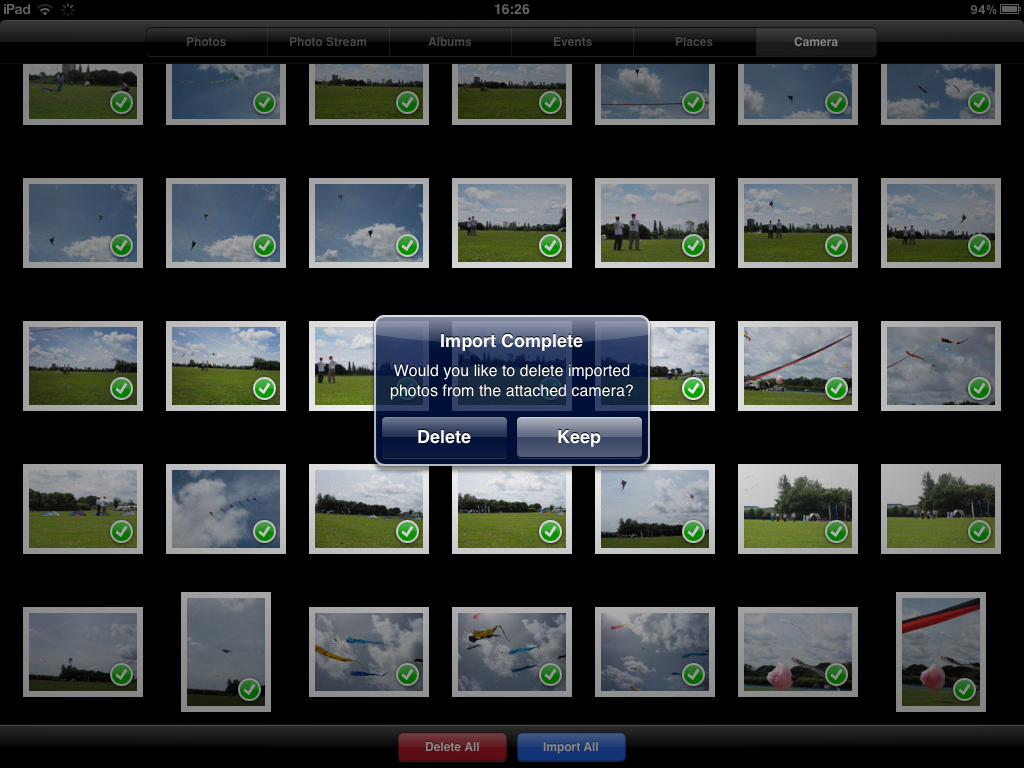
The technology does exist, though, and I recently invested in a 5-in-1 iPad Connection Kit, which I tried out following the recent kite festival. Beyond the irritation of the need to invest in such a piece of kit for what should surely be a basic and obvious function for any tablet or notebook, I am happy to report that this item works really well and conveniently solves my iPad digital photography woes. It's plug-and-play, and you simply attach your camera as normal, select which photos you want to upload (and, in usual iPad fashion, the interface for this is great) and away you go. As with any normal import tool, you are then given the option to delete the uploaded photos from the device.
Import photos
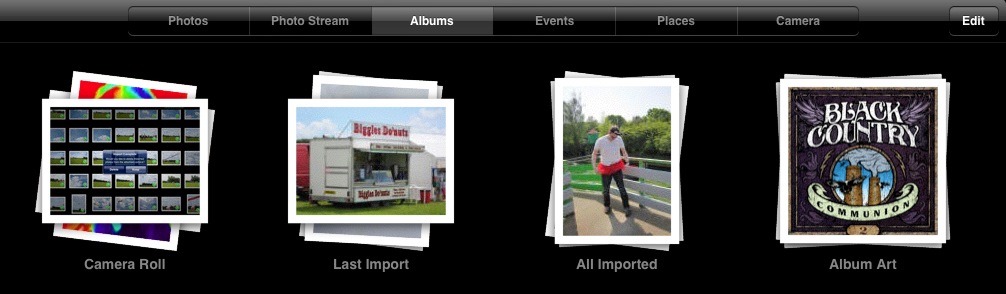
Once on your iPad, the photos are helpfully collated in an Album called "Last Import" with all imported photos in another album imaginatively called "All Imported". These are then available for all your usual iPad activities, such as blogging. You also then have the option of saving the photos individually to your camera roll, which will make them appear on your Photostream and thus available for other devices (if you have iCloud enabled). Happily, they do not all automatically appear in your Photostream - I was worried about filling up my iPhone the first time I tried this.
Albums
Of course, once you have your photos on your iPad, you need to do something with them. In the past, I have had to go via a PC with the good ones (essentially relegating the iPad to a viewing device (oPad!)) but now I use the Best Album App to put them up on Picasa. For some reason - competition, maybe? - Google websites like Picasa do not seem to work very well on iPhones and iPads, in my hands. I've tried a few apps claiming to work well with Picasa in the past and found them disappointing. This might be because I have stuck to the free ones. For a couple of quid, Best Album is well worth it. It just works really well. (So far, at least.)
Best Album Upload Picture
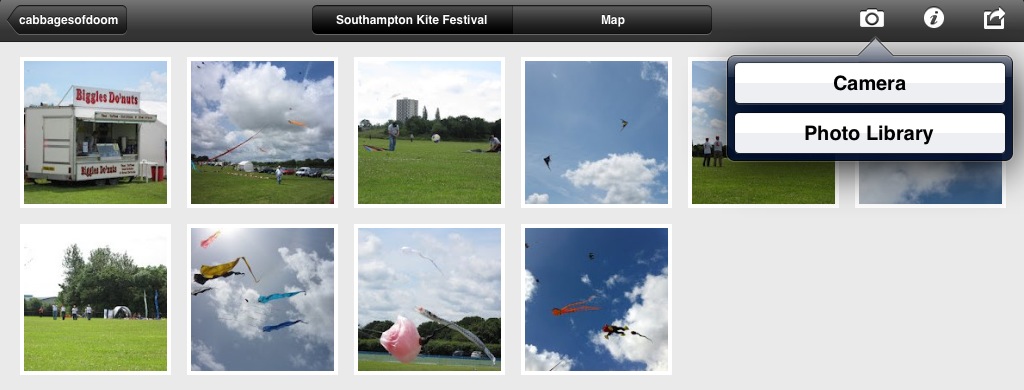
Once logged on to your Picasa account, you can view, edit and create galleries easily and then uploading photos is a simple as picking the photos you want from the Photo Library and then uploading. My only real gripe was that I did not find it easy at first to work out the size at which my photos would be uploaded to the website. I cannot remember now whether the default was too big (I don't have unlimited space on Picasa) or too small but it was easy enough to remedy in the Settings once I realised.
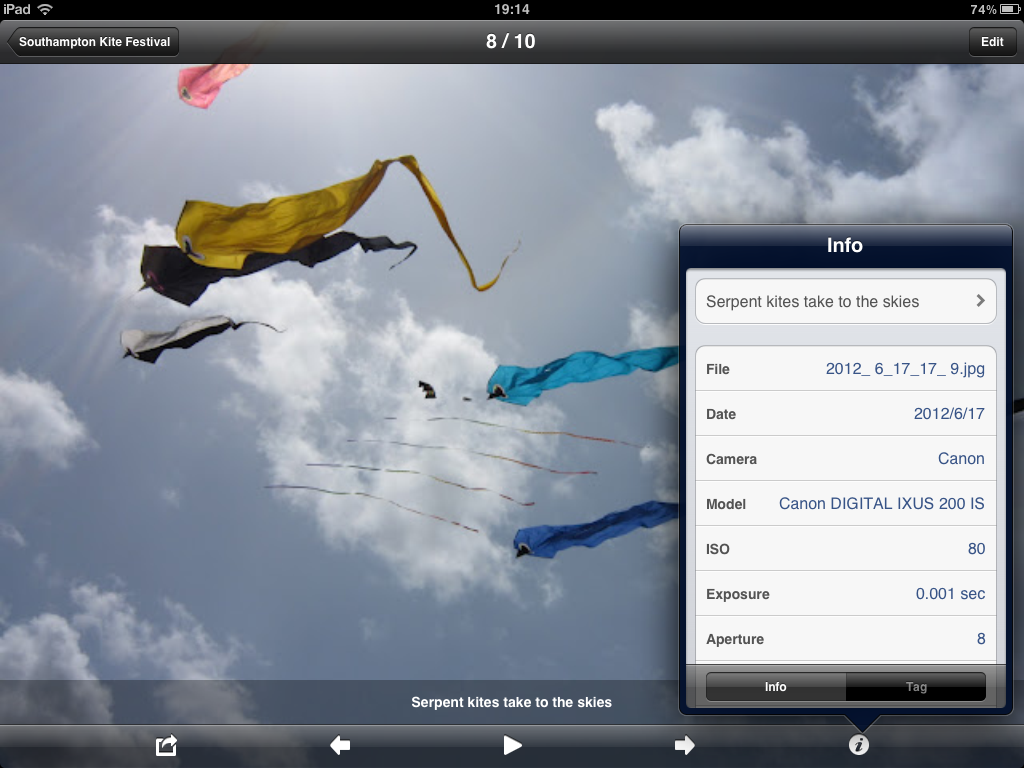
Best Album picture info
Once up, album details can be altered and the cover art set. Individual photos are also really easy to add captions to, and the like. My kite photos are here and the whole process of uploading them, flicking through to find the ones I liked, creating a Picasa album and uploading them, only took a few minutes and gained a bit of the iPad feeling of fun into the bargain. If you own an iPad and like digital photography then I can heartily recommend this combination of kit and app.

(I haven't gone into editing photos at all here because I don't do a lot of it. The main thing that I do is to re-crop photos, and the crop tool in the standard iPad Picture Gallery is perfectly adequate for that.)

Tuesday, 19 June 2012

When it comes to writing, it's more of an oPad than an iPad

This is my 200th blog post and I've had my iPad for around a year now, so it seemed like a good time to reflect on using the iPad for writing in general, and blogging in particular.

I'll start by saying that I really love my iPad and it's great for the main things that I had in mind when I bought it. It's handy for conferences, makes email feel like fun rather than a chore, and is a joy for web surfing - as long as you don't need flash of course! Reading PDFs is good with iBooks and better still if you need to annotate them and invest in the iAnnotate App. With ArtStudio and a stylus, it's great for drawing too. I love the way it's so easy to share and access files between my iPad and other devices using Dropbox, and the way that pictures taken with my iPhone are almost instantly available on my iPad through Photostream.

But... there are situations in which the iPad is not great, which are basically any situations in which a lot of typing is needed. For text-rich output, the iPad is fantastic but text-rich input just isn't its thing.

The problem is not a software issue. The OfficeHD App that I invested in early on is rather rubbish and buggy, to be honest, but the later Apple offering, Pages, works really well (even if it is one of the more expensive Apps out there). The problem is just that, even with the big touchscreen keyboard, you just can't type so quickly and instinctively as with a "real" keyboard.

I did invest in a wireless keyboard when I bought my iPad and, as a piece of kit, it works really well. It pairs cleanly and easily via bluetooth and has the usual delightful Apple keyboard feel that makes it a pleasure to type with. The problem is that it is just not that practical to use it with a iPad. You cannot easily, for example, balance both the iPad and the keyboard on your lap, as you can with a laptop. (It's called a laptop for a reason!) Although you can set up the iPad on a desk and sit the keyboard in front of it, this solution only really works if you only want to type. Without a mouse as well, it is a real pain whenever you want to use any of the functions that require touching the screen.

This is a particular problem when blogging, possibly due to my choice of blogger as host. In my hands, the WYSIWYG "Compose" mode does not really work on an iP* device and, even on Windows, it tends to add lots of unwanted HTML. (Too many divs!) For this reason, and being a bit of an HTML purest (hence my (X)HTML ASCII code cribsheet), I do my blog writing through the "HTML" mode. Writing HTML is especially bad on an iPad because of the need to toggle between letters, numbers and symbols. For blogging, my current solution is therefore to email blogger the subject and photos for a blog post from my iPad (or iPhone), and often the core text (if it's short) without any links or formatting, and then use a laptop (or my little netbook, on which I put Linux after Windows 7 killed it), to tidy up, format and/or add to the text/images.

It works but it's a bit clunky. And progess on "Mystic Mog and the Exploding Tortoise" has slowed to, well, tortoise pace. Happily, the answer might be in hand. Having stalked Mac Rumors for several months awaiting the new MacBook Air - and saving up my pennies - the new version was released last week and mine should be winging its way to me before the end of the month. My website might get some much-needed attention too! ☺

Wednesday, 13 June 2012

Artstudio: like being a kid again (It's great!)

Artstudio cat tutorialI'm a bit obsessed by the Artstudio App for the iPad at the moment. I find that there's something incredibly relaxing about colouring in. Perhaps it's regression to childhood or something! One of the nice features about ArtStudio for the novice is that it comes with a bunch of tutorials with step-by-step instructions to follow for drawing some basic stuff like faces and cats.

Here's a screenshot of my version of their cat tutorial, with a little customisation to make it look a bit more like one of our cats, Mia.

I really can't say enough good things about this App. It's incredibly easy and intuitive to use. The colour palettes, brush controls (e.g. thickness etc.) and layers are really quick and convenient to switch as you work. It all makes for a very pleasing and user-friendly experience. For art newbies like me, having good undo controls is great too!

Magicwand StylusJust before getting the App, with a view to using my iPad to explore my artistic a little, I invested in a Magicwand stylus. When it arrived in the post, I was a little disappointed. It got great reviews on Amazon but I could not get over how thick the stylus itself is: you can get finer control than a finger, for sure, but it is not exactly great for precision stuff. (There must be something about the way the touchscreens work that limits how small a stylus can get.) With Artstudio, it's not a problem, though: you can zoom in and out with such ease that fine control is possible, and the undo button is quick and convenient if you mess up. (I played around with Paper by 53 before investing in Artstudio (it's free) but it was really frustrating.)

At the end of the day, what I really want from an Art App is something that works well enough for my skill to be the limiting factor, not the technology. As you can tell by my first attempt at a "Mangafied" self portrait (below), Artstudio is just that. Five stars, 10/10, a definitely my favourite App of 2012 so far.

Mangafied self-portrait

Saturday, 2 June 2012

Afrotheria Artstudio-style

I've been taking a bit of R&R from the exam marking this evening and indulging my artistic side. I'm not entirely sure that I have an artistic side but I've been meaning to find out for a while as I used to really enjoy art at school before being encouraged to not to take it at GCSE in favour of a "more academic" nature. (History. Something I still consider to be one of the biggest mistakes of my life. Dropping Art, that is, rather than taking History. Not that I ever used it again.)

Recently, I bought a stylus for my iPad, as I thought this would be a good medium to play around on. Plenty of opportunity to undo! After a bit of on-line investigation and browsing in the App store, I also invested in a copy of ArtStudio, which at £1.99 (or $2.99) is a real bargain and packed full of features. I am still finding my way with it but here's my first offering from a collection simply called "Afrotheria". (Inspired by one of this year's exam questions in which the Superorder Afrotheria - which includes elephants, elephant shrews, aardvarks and sea cows - was used as the Outgroup for a tree of placental mammals.)


I think they need a little work but not bad for a first draft concept piece!

Credits. The animals themselves were copied from a PNAS article by Blair Hedges, "Afrotheria: Plate tectonics meets genomics". I hope the author doesn't mind.

Wednesday, 23 November 2011

TimeTreeHD: an App 2.5 billion years in the making

I feel that one of of my weaknesses is a poor memory for facts and figures. Although I tend to learn principles and concepts pretty well, I can easily start to doubt arbitrary pieces of information. This is particularly true when the information itself is subject to change; am I thinking of the new number, or the old one?

One such situation is the age of divergence of different species. As a lecturer of evolutionary biology, this can be a bit embarrassing and awkward. Fortunately, this is not something that I need to worry about (too much) any more, thanks to the TimeTreeHD App for my iPad. Want to know when a cat and a squirrel last shared a common ancestor? (And who wouldn't?!) Simple!


It's 95.2 million years ago (Mya), plus or minus. Probably plus - the "expert opinion" is 97.4Mya. At first, it gives you the mean estimate but down the timeline on the left all the different estimates are marked. The estimates themselves come from all pairwise estimates (in the TimeTree database) featuring species from each side of the tree; cat versus squirrel, for example, includes cow (closer to cat) and mouse (closer to squirrel). Tapping for details allows you to drill down further into different age estimates and see the source publications. Sorted! Well done, TimeTree.Org! (NB. The website might be even better!)

Friday, 11 November 2011

My best status updates of 2011 (so far!)

I'm a bit scared of Facebook Apps in general because I don't really trust them to behave but this one seemed worth the risk: My Top Status In 2010(!) I think it did a pretty good job of highlighting my 2011 (so far!) too. (Good to see a few silly ones made it to the Top 10 too.)