Showing posts with label markdown. Show all posts

Friday, 22 November 2013

Changing file extension associations on a Mac

One of the problems with making the switch from Windows to Mac is that you lose a lot of little tricks and tips that you have picked up over the years. Despite claims that Macs are much more intuitive than Windows machines (something that I have never found, personally), I quite often find myself frustrated at the lack of an obvious way to do something that I know how to do in Windows.

Yesterday, it was file extensions that briefly gave me angst. For historical (i.e. forgotten!) reasons, I have a lot of programs generating *.tdt files, which are tab delimited text. (The correct extension for such things actually seems to be *.tsv, or tab separated values.) Being a biologist, I generally like to open my delimited files to look at in Microsoft Excel - the number one bioinformatics tool in world! (By use, that is!) Naive Macs (and naive Windows machines) do not know what a *.tdt file is, though, so they will generally offer a text editor instead. Similarly, I have a lot of draft notes in Markdown, saved as *.md files, but Finder wants to open them in TextWrangler rather than Mou, my Markdown Editor of choice.

Happily, the internet has once again come to the rescue, in the form of a 2009 post on OSXDaily, Change File Associations in Mac OS X. Simply right-click (or ctrl+click) in Finder and select Get Info.

You can then change the program to open that file with and choose Change All to change the default action for all similar files (e.g. those with the same extension). This was so useful that I thought I would re-share here.

Thursday, 12 September 2013

A review of the "Instant Markdown" eBook from Packt Publishing

If you monitor my Twitter feed, you might have noticed that I was sent a free copy of a Instant Markdown eBook from Packt Publishing to review. I’d not come across Packt before but their general approach looks good - making DRM-free eBooks in multiple formats (once bought, you can get the ePub, PDF or Kindle versions) and paying some kind of royalty to Open Source projects that form the basis of their books. Despite time being a bit limited at present, learning more Markdown is potentially a big timesaver (as I use it a lot now) and it’s a short book, so I agreed.

Unfortunately, the book itself turned out to be rather disappointing. It was indeed quite short - a bit too short. The topics covered were themselves quite useful and it reminded me of a couple of things that I had previously noted to look up. The problem was that they did not really provide any insight that five minutes on Google or, in some cases, even the Markdown Wikipedia article would not match or beat. All too frequently, the content consisted of:

  • XXX: Read about it at <url>.

Screenshots, examples and even descriptions were sorely lacking. Just directing the reader to a website does not really seem enough to me. It’s the kind of thing I might do it my blog, or in a Markdown cribsheet, but not in a book, even an e-Book - especially one priced at £7.64. (Bizarrely, when there are screenshots they tend to be things like login screens, which is rather pointless.)

The lack of screenshots in the intro section could be forgiven as one of the best ways to learn Markdown is just to play with it and see for yourself what it does. Another criticism that I have, however, is that this eBook does not explicitly promote this approach: rather than starting with an online Markdown editor, such as Markable (or one of the other editors mentioned later in the book), the author begins by recommending the download of the official Markdown Perlscript and running it from the command prompt as a starting point.

The other reason that a different approach would be useful is that the book seems to assume a lot of HTML knowledge from the outset. Being a bit of a geek, I generally code my webpages in raw HTML - or, at least, I did before I discovered Markdown! - and so I recognised the HTML code that the Markdown was being converted into. People used to WYSIWYG editors might not be so familiar, especially with tags like <blockquote> and <code>. I am not sure at whom the book is aimed but it seems too superficial for geeks and yet too geeky for non-geeks.

Some of the more advanced features in the Top 8 features section are potentially useful but suffer from the superficial handling mentioned above. A few more screenshots or descriptions would have been useful for tools such as Scriptogr.am and writing Presentations - what do these things look like? Ditto the MultiMarkdown section. For example, the maths section for this is:

Math

Here is a math support example:

   \\[ {e}^{i\pi }+1=0 \\]

I don’t know about you but, at the very least, I would like to know what \\[ {e}^{i\pi }+1=0 \\] actually looks like when converted into HTML and opened in a web browser. For me, this really epitomises the book: it feels like it was lazily knocked out in an afternoon.

There were some useful things here - Pandoc is something I will be playing with and it was good to be reminded of it - but I’m not convinced that it is any more useful that one of the many Markdown guides that are kicking around for free online. (Some of these, almost ironically, are provided in “People and places you should get to know” section!)

The final problem that I had with this book was the lack of critical insight. It will, for example, give the basic code for embedding a picture in Markdown but fail to point out that it cannot be sized or aligned - to do this, you need to insert actual HTML. It will point to a few different tools but not really discuss the pros and cons of using an online versus local editor, for example. When giving the code for inline links ([text](url)) versus reference links ([text][ref] … [ref]: url), I expected it to point out that the former was clearer and safer if likely to be combining Markdown text from different sources (especially if using numerical references) whereas the latter is better if the same URL is being referenced multiple times. There was nothing like this. As someone who has largely picked up Markdown on the fly, I had hoped to pick up some useful tricks and tips and things to watch out for. I did not.

In summary, this is a handy reference guide to Markdown with some links out to some useful tools that themselves use Markdown. At £7.64, however, this eBook is not worth the money. More informative guides are freely available just a quick Google search away. (The documentation of free Markdown editors like Mou (Mac OSX) and MarkdownPad (Windows) is a good place to start for the curious.)

Wednesday, 12 June 2013

Blogging in Markdown with Blogger and Markable (on a Mac)

In a recent post, I extolled the virtues of Markdown as well as the online Markable editor and the Markdown Service Tools available for Markdown to HTML conversion in Mac OSX. This got me to thinking whether I could use Markdown to speed up writing some of my blog posts.

For ease of controlling the layout and context - and potentially re-using text and HTML - I write all my blog posts in the Blogger HTML window rather than using the “Compose” tools. I’m not entirely sure why but I just tend to prefer the result. (Part of it, I think, is the purity of the underlying HTML - what that says about me, I’m not sure I want to know!)

I often email myself content and plain text notes to tidy up later (hence the massive pile of half-written draft posts that I have) but since (re)discovering Markdown, I have started making more notes in Markdown and wondered if I could harness that in my blog writing. Blogger does not have a dirext Markdown editor, sadly, but there does seem to be a pretty convenient solution for Mac users, at least.

1. Install Markdown Service Tools. Brett Terpstra’s Markdown Service Tools offer, among other things, the capability to direct copy Markdown onto the clipboard as HTML code or make the Markdown to HTML conversion in place.

2. Write your Markdown in Markable. Whilst not strictly necessary, writing the Markdown in the Markable editor will catch any problems with your Markdown as you go.

3. Convert your Markdown to HTML. Windows users might need to export the HTML and then open the file in a text editor to copy and paste into Blogger. On a Mac, with the Markdown Service Tool, it is a bit easier - although, sadly, not quite as easy as I had hoped. The Service to use is:

md - Convert - HTML to Clipboard

Unfortunately, this does not seem to be available for highlighted text in the Markable window. Instead, there is the need to first copy and paste the text to a regular text window. This is not so bad, as the regular Blogger window itself will do. You then need to use the conversion service and paste back into the Window. Alternatively, just use:

md - Convert - MultiMarkdown to HTML

This will convert the text in place. You can either use the Services menu item (or right-click), or you can setup a Markdown Service Shortcut to do it all with the keyboard.
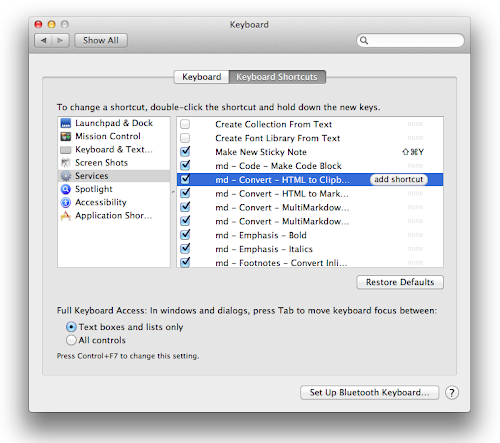
4. Make sure that line breaks are used. One thing I noticed when converting the HTML is that it (sensibly) uses paragraph markers. If, like me, you use Blogger’s capacity to Press “Enter” for line breaks, you will need to change this. (The laziness and readibility this option enables are not needed when using Markdown anyway.)

5. Add pictures, tidy and post. With the main text, links and formatting in place, it is now a simple case of adding the pictures, tags etc., giving the post a quick preview (and tidy if necessary) and unleash it to the world. The added benefit, of course, is that you have an extra copy of your post saved in Markable in case anything goes wrong.

Disadvantages

As well as the line endings issue, there are a few disadvantages of doing things this way. One problem is that if you Preview a post and then spot an error, you have three obvious choices, none of which appeals:

  1. Edit in the Blogger window, which is easy, but then have different Blogger and Markable versions of the text.
  2. Edit in both Blogger and Markable.
  3. Edit in Markable and then repeat the text copy and conversion process.

The latter is obviously the best if the changes are large but what if you have already added extra pictures and things?

One solution is to convert your HTML back to Markdown to continue editing.

md - Convert - HTML to Markdown

This has pros and cons. One pro and con is that the new Markdown does not necessarily look like the original. This can teach you new Markdown but might also confuse!
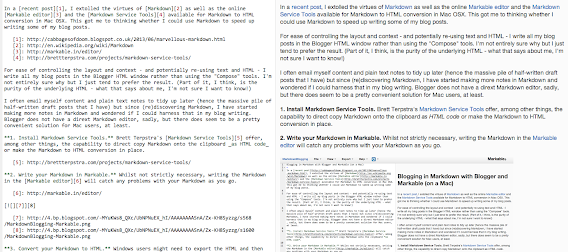
The picture placement and formatting also does not remain quite the same and may need re-jigging once the Markdown to HTML conversion is repeated. This only seems to be a problem for left/right-aligned images, though. It's also a fairly easy way to get images into Markable files, if that is your goal!

It may not be suitable for every post, and there is a good chance I will end up going for tweaking option 1 (abandoning the Markable version) in most cases, but it could prove a useful way to write posts with a lot of links and formatting. If nothing else, it's another good way to develop some Markdown skills.

Saturday, 8 June 2013

Marvellous Markdown

Another positive outcome of the recent Software Carpentry boot camp was the excuse and opportunity to get a bit more to grips with Markdown. This is really useful pseudocode that retains a high degree of human readability in plain text form, whilst being easily converted to HTML and other rich text formats. I'd already used it a bit for some of my content on the University of Southampton Computational Modelling Group website but I'd never fully realised its flexibility, value and potential until I started writing README files in it.

I won't try to explain Markdown itself here. The Wikipedia article is pretty informative if you want to know more. Instead, this a quick post to highlight/bookmark some useful Markdown tools that I've come across.

Markable

The first is the Markable website.
Markable top
This is great if you just want to try your hand at a bit of Markdown and see what the HTML conversion would look like. Simply type your text in the online Markable editor and the HTML window will automatically update to reflect the changes! You can then copy the Markdown to the clipboard or export Markdown/HTML to a file.
Markable bottom
If you see yourself using Markdown a lot, as I now do, you can register and take advantage of a whole bunch of other tools, such as (auto)saving content to work on later or exporting the Markdown (or HTML) directly into Dropbox.
Markable screenshot of Python Markdown info

Markdown Service Tools

Of course, if you are like me then saving to HTML code might not be enough for you. You might want to see the HTML code and/or copy it for use elsewhere. (I write all my blog posts in the HTML editor, for example.) On a Mac there is the tremendously useful Markdown Service Tools by Brett Terpstra that, among other things, includes tools for precisely this. Simply download the zip file, unpack and then copy the relevant *.workflow files to your OS X System Service folder:
~/Library/Services/
(Brett has a description of how to install Services here. You might have to make the Services/ folder first - I did.) This makes those services available via the Services menu item (or right-click → Services) across a range of Apple applications. My favourite so far is the "md - Convert - HTML to Clipboard" service, which converts highlighted Markdown text to HTML and copies it directly onto the clipboard. In combination with the Markable editor, I think this could be really useful.

Python-Markdown

It's worth quickly mentioning that there's a Markdown Python library, if for no other reason than that is appears in the Markable screen grab above! This can be used for easy conversions between formats, which might be handy for coding up batch conversions of *.md to HTML README files etc. I really need to save this one for another day as I am still getting to grips with it and working out how/where it can be useful for me.